Velocity
Use Velocity to adjust how your playing translates into MIDI velocity and how notes are triggered.
Curve & range
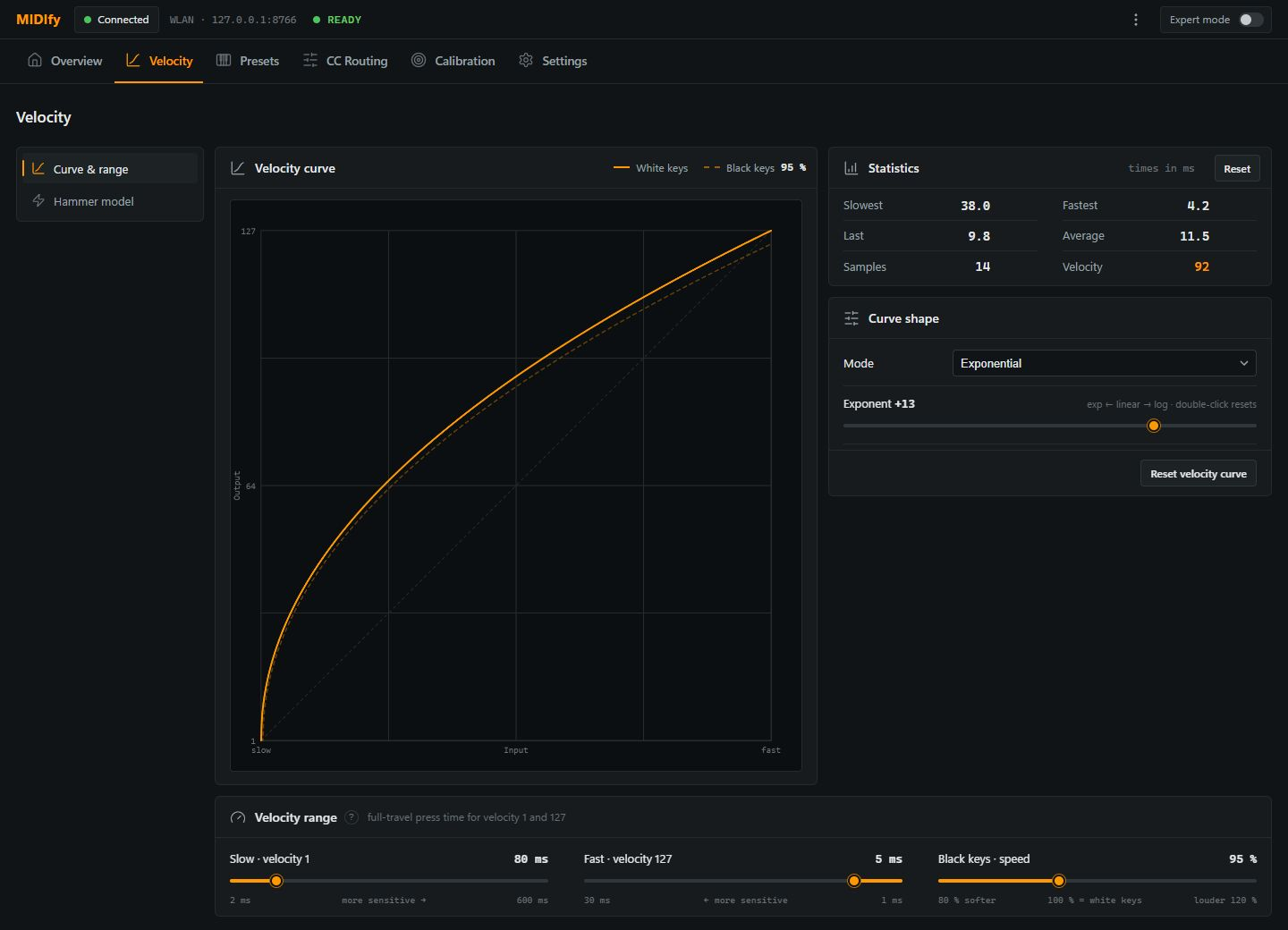
Match the velocity response to your playing
Use Last in the Statistics panel as your main guide: it shows the press time of your most recent keystroke in milliseconds. Slowest and Fastest provide additional reference values from the recorded presses.
- Press a key as slowly as you would want to play your quietest notes. Read the time shown under Last, then set Slow · velocity 1 to that value.
- Play a very fast keystroke, representing the strongest attack you want to use. Read Last again, then set Fast · velocity 127 to that value.
- Play with a range of dynamics and adjust Exponent to shape the velocity values between those two endpoints.
Slow and Fast set the input range of the curve, acting as its gain adjustment. Exponent shapes the response within that range. This gives you a starting point matched to your own playing, which you can refine as you play.
Controls
| Control or display | Meaning |
|---|---|
| Velocity curve | Shows MIDI output velocity against input speed. The white- and black-key curves let you see the effect of your adjustments. |
| Mode: Exponential | Provides a smoothly curved response, adjustable with Exponent. |
| Mode: S-Curve | Provides an S-shaped response with a transition between softer and stronger playing. Beta moves that transition. |
| Mode: Round | Provides an alternative rounded curve shape. Use the graph and your playing to compare it with the other modes. |
| Exponent | Changes the curvature and therefore the response between quiet and strong notes. Double-click the slider to return it to its reset position. |
| Beta | Moves the transition point of the S-Curve. This control appears only in S-Curve mode. |
| Reset velocity curve | Restores the curve settings and black-key speed adjustment to their built-in reset values. It does not reset the slow and fast press-time limits. |
| Slow · velocity 1 | Sets the full-travel equivalent press time assigned to the quiet end of the velocity range. Increasing it makes slower playing more responsive. |
| Fast · velocity 127 | Sets the full-travel equivalent press time assigned to maximum velocity. Increasing it makes velocity 127 easier to reach. |
| Black keys · speed | Scales the measured speed of black keys relative to white keys. Values below 100% make them softer; values above 100% make them louder. |
Statistics
| Display or control | Meaning |
|---|---|
| Slowest / Fastest | The slowest and fastest recorded full-travel equivalent press times, in milliseconds. These values already account for the measurement window. |
| Last / Average | The most recent press time and the average of the recorded presses. |
| Samples | The number of presses included in the statistics. |
| Velocity | The velocity of the latest note. |
| Reset | Clears the statistics so you can measure a fresh playing sample. It does not reset your velocity settings. |
Hammer model
You can choose between two ways of triggering MIDI notes. Position threshold is the default: this traditional method sends a Note On when the key crosses the configured position threshold, even when you press it very slowly.
Hammer model simulates the movement of a hammer to reproduce the response of the physical instrument more realistically. A Note On is generated only when the virtual hammer reaches the tine or reed.
For example, pressing a key extremely slowly may not accelerate the virtual hammer enough to reach the tine or reed, so no MIDI note is sent. This reflects how the real instrument can behave, but may differ from what you expect from a conventional MIDI keyboard, which would still trigger when the key crosses its threshold.
Choose Position threshold for the familiar threshold-based MIDI response, or Hammer model if you prefer the simulated mechanical response, including strokes that remain silent.
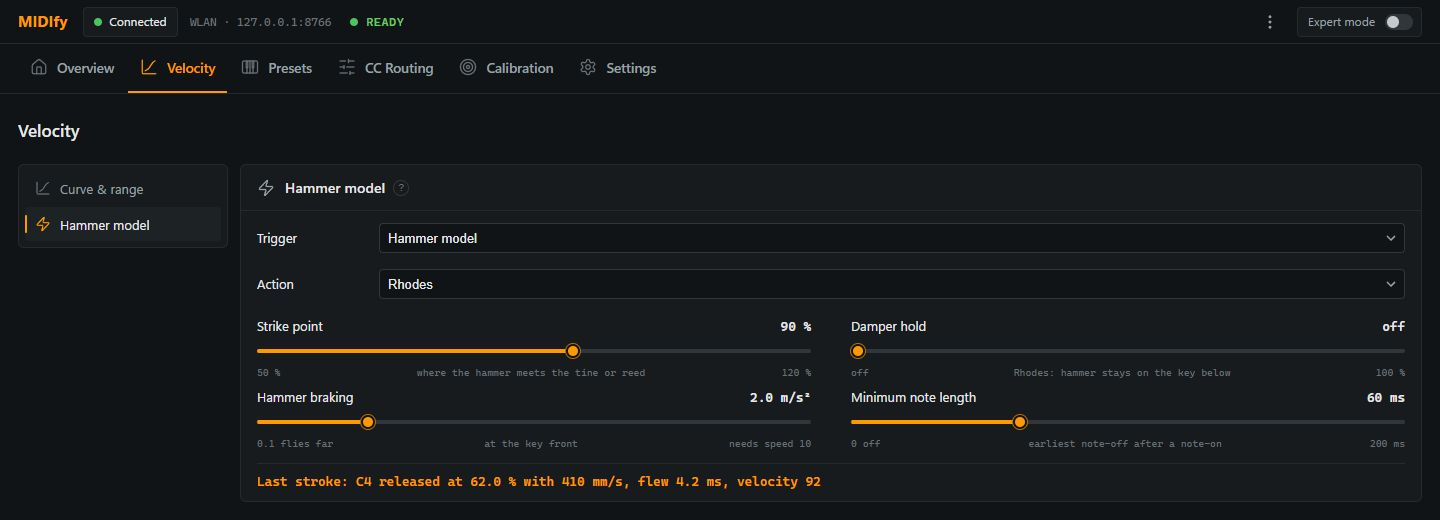
| Control or display | Meaning |
|---|---|
| Trigger: Position threshold | Triggers a note when the key reaches the configured note-on position. |
| Trigger: Hammer model | Simulates a moving hammer and triggers the note when it reaches the strike point. A very slow press may produce no note if the simulated hammer does not reach it. |
| Action | Selects the Rhodes or Wurlitzer action model and loads its associated settings. Changing this selection can replace adjustments you have made to the model. |
| Strike point | Sets where the simulated hammer must arrive to produce a note, expressed relative to key travel. A higher value requires the hammer to travel farther. |
| Damper hold (Rhodes) | Sets the region in which the hammer remains constrained by the key. Releasing the key before leaving this region prevents a free hammer strike. |
| Hammer braking | Sets how strongly the simulated hammer slows down. Higher values require more speed to reach the strike point. |
| Minimum note length | Delays note-off until at least this many milliseconds after note-on. This helps keep very short strikes audible; zero disables the minimum. |
| Last stroke | Reports the last simulated hammer movement, including release position, speed and the strike result. Use it to understand why a stroke did or did not produce a note. |
The additional controls appear when Hammer model is selected as the trigger.
Wurlitzer action
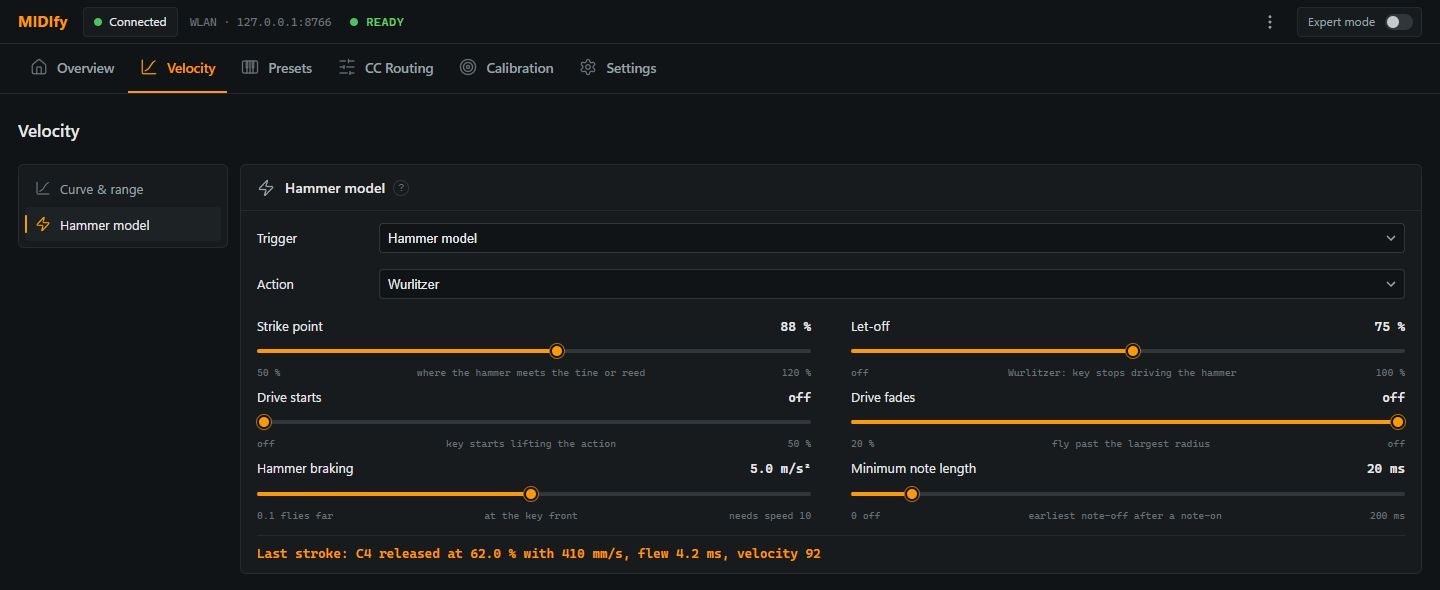
| Control | Meaning |
|---|---|
| Let-off | Sets the point where the key stops driving the hammer and it continues in free motion. |
| Drive starts | Sets where the action begins receiving full drive from the key. Below this point, the model reduces the key's drive. |
| Drive fades | Sets where the drive begins to decrease near the end of key travel. This models the action moving past its most effective driving position. |